 Memory Notch
LOCAL TRANSCRIPTION. YOUR CHOICE OF AI.
Record offline.
Think further.
A local transcription tool for Mac, with notes you can use in ChatGPT, Claude, and Cursor. Capture the conversation with Memory Notch. Choose what your AI gets to read.
The quickest way to start is Ask AI, right in Memory Notch. The full guides below cover Claude, ChatGPT, Codex, Cursor, and any other AI app. No special Memory Notch connector or MCP server: use a selected folder, or give ordinary chat the transcript. Nothing syncs to an AI service automatically.
Memory Notch records and transcribes on your Mac. Letting another AI read those files can send their contents to that provider for processing. Check your account’s data settings and workplace policies first. The AI app’s subscription, permissions, and data handling are separate from your Memory Notch licence.
01 / THE QUICKEST WAY
Press Ask AI, then paste.
Memory Notch copies what your AI app needs, ready to paste.
Press Ask AI
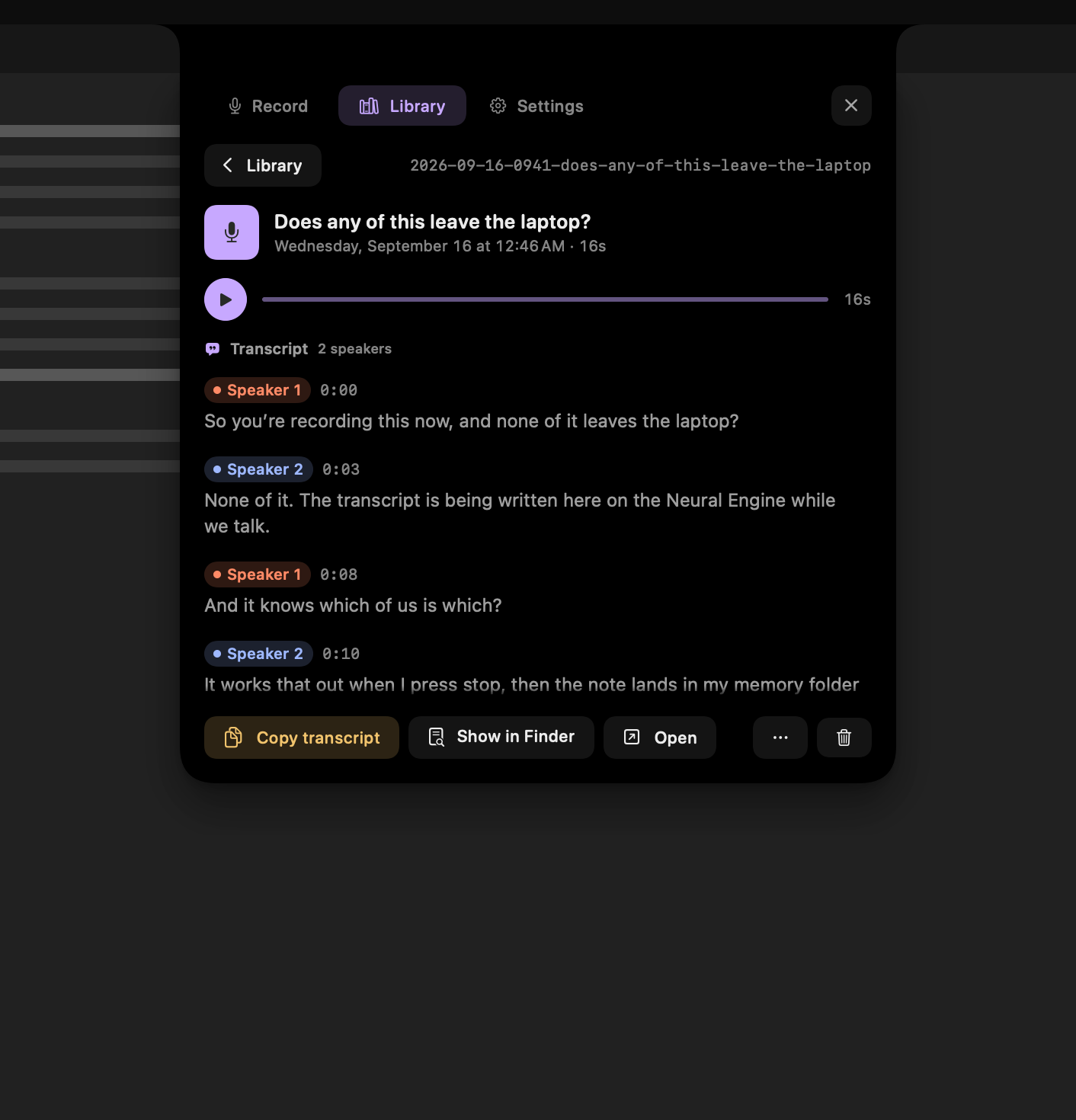
It sits beside Copy transcript, on the saved recording and on each note. In the Library list, you can also open a row’s menu and choose Ask AI about this.
The first time, choose your AI app
Memory Notch asks which AI app you use (Claude, ChatGPT, Cursor, or something else) and how you use it, such as Claude Code or ChatGPT Chat. It remembers, so later presses copy straight away.
Paste what it copied
If your AI app can read a folder on your Mac, you get a prompt naming the recording’s folder. For chat, or an app Memory Notch does not list, you get the transcript itself. Paste it into your AI app; the guides below show where.
While a recording is still transcribing, Ask AI shows Transcribing… and copies nothing. If a recording has no transcript, Memory Notch says so instead of copying a prompt that would fail.
A prompt naming the recording’s folder, for Claude Code, Cowork, Codex, ChatGPT Work, and Cursor
The transcript itself, for Claude Chat, ChatGPT Chat, and any other AI app
Ask AI → copied → paste
02 / FOR ONGOING WORK
Keep an AI folder.
For recordings you come back to, keep copies together in one folder your AI app can open.
Add the recordings you want
Choose Add to AI folder on a note or in a row’s menu. Memory Notch puts a copy in
for-ai, inside your notes folder (~/memoryby default). They are copies, not links: AI apps can refuse or mishandle links that lead outside the folder. Only the note and transcript go in, unless you turn on audio and video.Ask about the whole folder
Copy the AI folder’s prompt in Settings and paste it into your AI app. It tells the AI to read
AGENTS.mdfirst, which explains how the folder is laid out;CLAUDE.mdholds the same text. If you use chat, you get the transcripts together instead, when they fit in one chat.Leave the upkeep to Memory Notch
Memory Notch updates a copy when its transcript finishes, or when the recording is renamed or re-filed. Delete a recording and its copy goes too. Memory Notch never touches files you put there yourself.
Or share your whole library
For apps that can read folders, Settings can also copy a prompt for your entire notes folder that asks the AI to start with
README.md. Be sure you want this: it gives the AI app every recording, including audio.
It all lives in Settings → Use with AI: your AI app and how you use it, the AI folder, your whole library, and where your notes folder is.
~/memory/for-ai/Explains the layout to your AI app
A copy of each note you added, in its own folder
Its transcript, copied beside the note
Add to AI folder → copy prompt → paste
03 / OR FIND THE FILES YOURSELF
One recording is enough to start.
- In Memory Notch, open Library, choose a recording, and select Show in Finder: the magnifier button under the note, or right-click the recording in the list. Or, in Finder, press ⇧⌘G and enter
~/memory/notes. - Select that recording’s folder. Its
.mdfile holds metadata and paths; the matching.txtfile contains the transcript. Give the AI both, not just the Markdown file. - For several recordings, the AI folder does the copying for you. If you copy files by hand, keep each
.mdwith its.txt. Tell the AI to use that transcript if a note’s original path cannot be reached, and avoid Desktop and Documents if iCloud syncs them.
Leave audio and video out unless your task needs them. Copied files are a snapshot: new recordings are not added automatically.
04 / RECOMMENDED CLAUDE ROUTE · CODE TAB · LOCAL
Claude Code
Our first choice for this folder-based workflow: use Claude Code inside Claude Desktop to read selected notes directly. You do not need to write code to ask questions about text files.
Select Code, then Local
Open Claude Desktop and select the Code tab. In the prompt area, choose Local as the environment—not Cloud or SSH.
Choose your notes as the project folder
Use the project-folder picker to select one recording folder or your AI folder. Keep the .md and .txt files together. You are choosing a working folder, not connecting a Memory Notch account.
Start with a read-only request
Choose Manual permission mode (Ask permissions in older versions), then paste the prompt Ask AI copied, or use the verification prompt below. You can @-mention specific files in local sessions. Review requests to edit files or run commands; do not enable Bypass permissions for this task.
Local selects where the tools run and files live. It does not make Claude’s model run offline on your Mac.
Checked September 16, 2026 · Anthropic’s Claude Code Desktop guide ↗
recording-id/Note title, metadata, and file paths
The words that were spoken
Code → Local → project folder → verify
05 / COWORK · SELECTED LOCAL FOLDER
Claude Cowork
Use Cowork in the desktop app for direct access to a chosen folder. Ordinary Claude chat does not automatically read a path you type.
Open Cowork
Open Claude Desktop, sign in, and select Cowork in the message box. This requires an eligible paid Claude plan and an internet connection.
Connect the folder you chose
Ask to work with your selected recording folder or your AI folder, and use the local-folder selection or access prompt. Review the exact folder before approving. Keep Claude Desktop open while Claude needs the local files.
Check access, then ask your question
Paste the prompt Ask AI copied, or use the verification prompt below. Confirm Claude can read both the Markdown note and its transcript before asking for a recap. Keep approval prompts enabled and review any proposed edits.
Local access is not offline AI: Anthropic describes Cowork processing in its cloud. Availability and controls depend on your plan and app version.
Checked September 16, 2026 · Anthropic’s Cowork setup guide ↗
recording-id/Note title, metadata, and file paths
The words that were spoken
Cowork → selected folder → verify files
06 / CHAT · PASTE THE TRANSCRIPT
Claude Chat
An ordinary Claude chat reads what you paste or attach, not folders on your Mac. So for Chat, Ask AI copies the transcript itself.
Start a new chat
Open Claude on the web or in Claude Desktop, and start a new chat. You do not need Code or Cowork for this.
Paste the transcript
Paste what Ask AI copied into the message box, or attach the recording’s .txt transcript as a file. Either way, Claude gets a snapshot, not ongoing access to your notes.
Ask, then check the answer
Ask your question in the same chat, and check important details against the transcript. Typing a path such as ~/memory does not let Claude open your files.
Anthropic processes what you paste, not your Mac. For a folder Claude can read, use Claude Code or Cowork.
Checked September 16, 2026 · Anthropic’s guide to uploading files ↗
a snapshot, not a folderThe transcript itself, copied by Ask AI
New chat → paste transcript → ask
07 / DESKTOP · LOCAL PROJECT
Codex
Give a local project access to your selected note folder. A cloud project or an uploaded Markdown file is not the same as access to your Mac’s recording folder.
Choose a local project
In the desktop app, create or select a local project for these notes. Current OpenAI documentation groups Codex within the ChatGPT desktop app; labels can differ in older Codex builds.
Attach the selected folder
Open the project menu, choose Edit project, then Add folder. Select the recording folder or your AI folder. Make it the primary folder if this project is only for notes. Do not attach unrelated folders.
Start a Codex chat in that project
Use a local session that works with the selected folder, then paste the prompt Ask AI copied, or send the verification prompt below. Keep sandbox and approval protections enabled; you do not need unrestricted access, a Git repository, or an MCP server for this workflow.
The project organizes file access; permissions and the sandbox enforce access. AI processing is separate from Memory Notch’s on-device recording.
Checked September 16, 2026 · OpenAI’s local-project documentation ↗
recording-id/Note title, metadata, and file paths
The words that were spoken
Local project → Add folder → Codex chat
08 / WORK · LOCAL PROJECT · NOT THE SAME AS CODEX
ChatGPT Work
ChatGPT Work can carry out file-based tasks. Where it is available in ChatGPT Desktop, give it a local project attached to your notes. Chat and Codex are separate workflows.
Select Work
Where available, open ChatGPT Desktop and select Work with the toggle above the composer. If local Work is unavailable on your account or platform, use the Codex local-project steps instead, or paste the transcript into Chat.
Use a local project for your notes
Add a local project and attach the recording folder or your AI folder to it. Confirm the session is working with files on this Mac. Web-only projects and cloud file storage are different.
Check which files it can read
Paste the prompt Ask AI copied, or use the verification prompt below, before asking for analysis. Do not assume every ChatGPT desktop mode has identical file access.
ChatGPT Desktop is the app; Chat, Work, and Codex are different workflows. Local file access does not mean offline AI processing.
Checked September 16, 2026 · OpenAI’s desktop workflow guide ↗ · Local projects and attached files ↗
recording-id/Note title, metadata, and file paths
The words that were spoken
Work → local project → verify
09 / CHAT · PASTE THE TRANSCRIPT
ChatGPT Chat
Chat is for conversation with the context you provide. It does not read folders on your Mac, so for Chat, Ask AI copies the transcript itself.
Start a new chat
Open ChatGPT and start a new chat. In ChatGPT Desktop, select Chat with the toggle above the composer.
Paste or attach the transcript
Paste what Ask AI copied, or attach the .txt transcript using the composer’s file control. This shares a snapshot, not ongoing access to the folder.
Ask your question
Typing ~/memory does not give ordinary Chat access to that path. For work across a folder of notes, follow the Codex or ChatGPT Work steps instead.
OpenAI processes what you paste or attach, not your Mac. Check your data settings and workplace policies before sharing anything sensitive.
Checked September 16, 2026 · OpenAI’s desktop workflow guide ↗ · Local projects and attached files ↗
a snapshot, not a folderThe transcript itself, copied by Ask AI
Chat → paste or attach transcript → ask
10 / DESKTOP · FOLDER CONTEXT
Cursor
Open the chosen folder in Cursor and point Agent at the note and transcript. These are ordinary text files; there is no Memory Notch extension to install.
Open your chosen folder
Open Cursor, sign in, and use its folder picker to open one recording folder or your AI folder. Confirm the .md and .txt files appear in the file sidebar.
Add explicit file context
Open Agent with Command–I on Mac. Type @ in the chat input and select the Markdown note and matching transcript from the suggestions. Select actual files, not just an unlinked filename in your message.
Verify what Agent read
Paste the prompt Ask AI copied, or use the verification prompt, before asking for analysis. If a file is missing, check the selected folder, file permissions, and exclusions. A folder mention does not guarantee every file fits into the model’s context.
Use the desktop folder workflow, not a remote cloud-agent repository. Review the model and data settings before using confidential material.
Checked September 16, 2026 · Cursor’s file-context documentation ↗ · Cursor quickstart ↗
recording-id/Note title, metadata, and file paths
The words that were spoken
Open folder → @ note + transcript → verify
11 / SOMETHING ELSE · PASTE THE TRANSCRIPT
Another AI app
For an AI app Memory Notch does not list, Ask AI copies the transcript itself. That works anywhere you can paste text.
Choose Something else
When Memory Notch asks which AI app you use, choose Something else. You can change it later in Settings → Use with AI.
Paste the transcript
Start a new conversation in your AI app and paste what Ask AI copied, or attach the .txt transcript if the app takes files. Either way, it gets a snapshot.
Check what it read
Ask it to quote a short line from the transcript before you rely on the answer. If your app can open folders on your Mac, you can also give it a recording folder by hand and use the verification prompt below.
Your AI app’s provider decides where the transcript is processed and how long it is kept. Check its data settings, and your workplace policies, before pasting anything sensitive.
a snapshot, not a folderThe transcript itself, copied by Ask AI
Something else → paste transcript → check
12 / VERIFY BEFORE YOU RELY ON IT
Ask it to show its sources.
First, confirm the tool can read the actual text. A filename alone is not evidence that the transcript was loaded.
Read only the selected folder. Do not modify, rename, or delete files.
List the .md notes and their matching .txt transcripts.
For one recording, report the title and quote a short line from the transcript,
with its filename and timestamp if present. If you cannot access it, say so.
Then ask for a useful output, with a clear boundary between the recording and the AI’s interpretation:
Using only the selected transcript, draft a concise recap of the discussion.
Cite the source filename and timestamps where available.
Separate explicit decisions from suggestions. Do not invent owners or deadlines.
Flag uncertainties. Reply in chat; leave the original files unchanged.
These prompts guide behavior; they do not replace permission controls. Check the answer against the transcript and original audio. Any summary is produced by the AI tool, not automatically by Memory Notch.
If the AI cannot see your notes
- It sees the title, but not the conversation.
- Add the matching .txt transcript. The Markdown note is metadata, not a copy of everything that was said.
- It says the folder does not exist.
- Confirm you are using the desktop local-file workflow on the Mac that holds the files. A typed path does not grant access, and a cloud session does not automatically see your Mac.
- It misses older or longer recordings.
- Start with one recording and explicitly select its files. Tools have context limits; do not assume an entire library was read.
- It asks to change files or broaden access.
- Review the request. Keep read-only permissions where available and decline changes your task does not require. Do not disable protections just to make a folder appear.
LOCAL TRANSCRIPTION & AI PRIVACY
Before you connect your notes.
Looking for a local transcription tool that works with ChatGPT, Claude, or Cursor?
Memory Notch records and transcribes on your Mac, then saves ordinary Markdown notes and text transcripts. Press Ask AI to copy what your AI app needs, or use the files with ChatGPT, Claude, Codex, or Cursor through the workflows above. This is file compatibility, not a built-in account integration or automatic sync.
Can I transcribe offline and ask AI about the recording later?
Yes. Memory Notch’s recording and transcription run on-device. Keep the transcript locally, then choose whether to share it with an AI service later. Initial setup and missing-model recovery may need a connection; see the technical specifications for the full network boundary.
Does Memory Notch send my recordings to ChatGPT or Claude?
No. Ask AI copies a prompt or a transcript only when you press it, and the AI folder stays on your Mac. Your AI app reads what you paste or the folder you give it, and its provider processes that, not your Mac.
Does local transcription make my AI workflow secure?
Local transcription keeps that processing on your Mac, but it is not a blanket security guarantee. Protect your Mac and backups, share only the required files, and check your AI provider’s retention, training, and access settings. Use sensitive workplace or patient information only when your organization permits that specific workflow.
Do ChatGPT, Claude, and Cursor run offline with Memory Notch?
No. These guides do not turn another app’s AI into an offline model. Local folder access describes where the source files live; the AI service can still process their contents remotely. Memory Notch’s licence does not include a subscription to those services.
Technical specifications ↗ · Five-minute trial & paid licence ↗